Help Guides
Surveys
Reporting
Getting Responses
Managing Responses
Integrations
Labels in CustomerSure are categories you apply to customer feedback.
They are designed to support day-to-day decision making and follow-up, rather than sentiment analysis or scoring (use sub-topics for that!). Labels answer questions like:
- Is this a complaint?
- Does this need a reply?
- Is this feedback highlighting a vulnerable customer?
- Is this something we should share internally?
Unlike topics, labels do not have sentiment. A label says “this feedback belongs in this bucket”.
Built-in labels
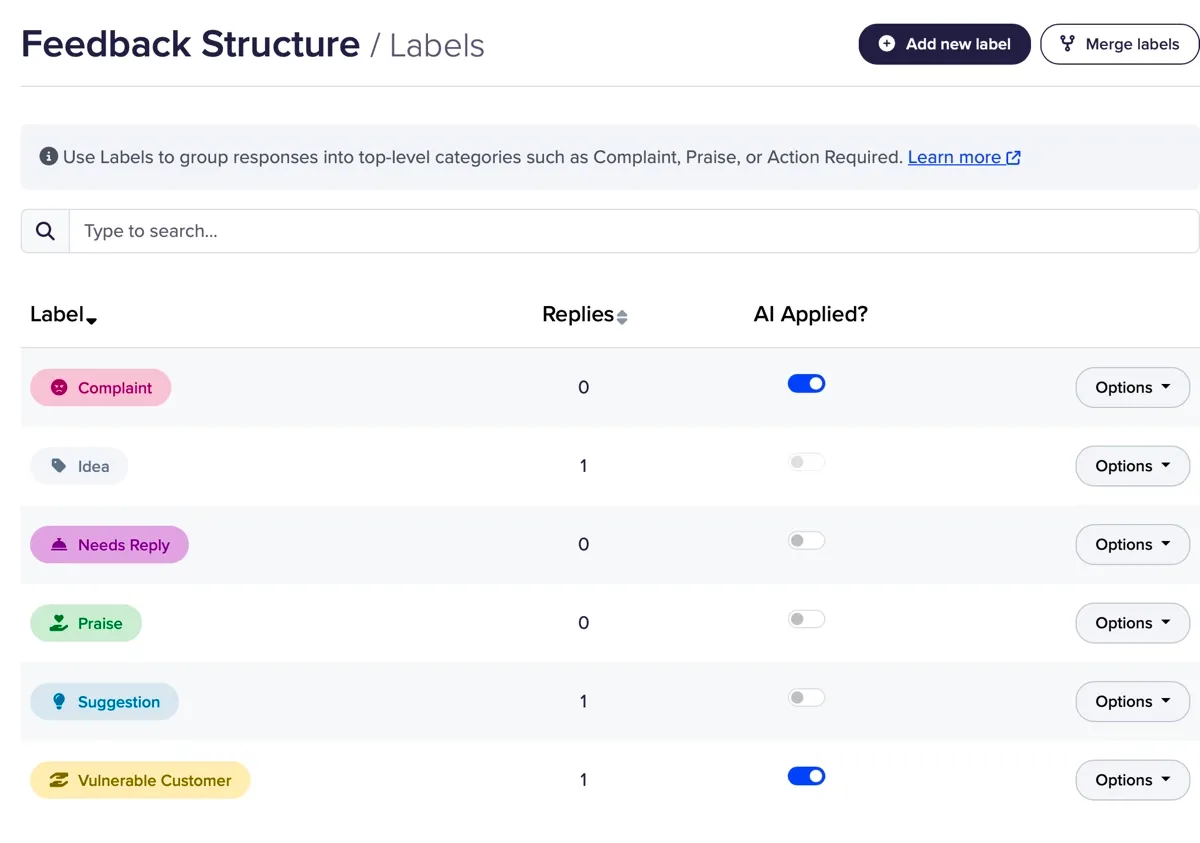
CustomerSure includes a set of built-in labels that cover common use cases:
- Praise
- Complaint
- Needs reply
- Suggestion
- (Likely) Vulnerable customer
These labels are reflect patterns we consistently see across effective VoC programmes and are designed to help teams act quickly and consistently.
AI-applied vs manual labels
Labels can be applied in two ways:
- Automatically by AI
- Manually by your team
Controlling AI label application
From the labels index screen, you can toggle whether each label is eligible for AI application.
This is particularly useful if you want AI to handle triage-type labels (e.g. Complaint, Needs reply), while reserving others for human judgement.
To keep things consistent, you cannot change the AI logic behind built-in labels.
Creating your own labels
You can create custom labels to reflect what matters to your organisation.
Examples might include:
- refund discussed
- legal risk
- black mould (i.e. to help get Awaab’s law right)
- share with board
When creating a label, you can provide:
- Name – how it appears in the interface
- Description – what the label means and when it should be used. If you’re using AI, the AI will lean on this description to help it choose when to apply the label.
- Colour – for visual scanning
Label descriptions matter
If AI application is enabled, the description is used by the LLM to decide when to apply the label.
Clear, specific descriptions lead to better results.
Good example:
“Apply when the customer explicitly requests a refund, or when refund is strongly implied.”
“Apply to feedback that illustrates a trend, incident, or customer quote suitable for inclusion in board packs or executive updates.”
“Apply when the customer alleges breach of contract, discrimination, negligence, or other legally actionable issues.”
Poor example:
“Refund related feedback.”
“Board related.”
“Risky feedback”
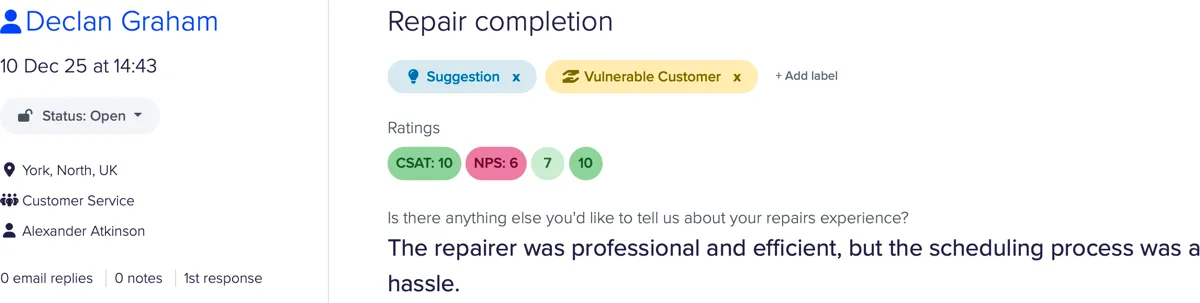
Applying and removing labels on feedback
To apply a label manually:
- When you’re looking at a piece of feedback or in your feedback list
- Click ‘add label’
- Select the label you’d like to add.
You can apply multiple labels to the same feedback item.
To remove a label, simply click the ‘x’ icon next to it.
Filtering feedback by label
Labels can be used as filters on the feedback list.
This allows you to:
- View all complaints
- Find feedback that still needs a reply
- Build operational workflows around labelled queues
Labels are especially effective when combined with:
- Status (Unreviewed / Assigned / Closed)
- Priority (manual or via Triage Rules)
- Business areas (sites, teams, brands)
Labels vs topics
Labels and topics often get confused, but they serve very different purposes:
| Labels | Topics |
|---|---|
| ’Boxes’ to put your feedback in | Things customers talk about that you can improve |
| No sentiment | Positive / negative sentiment |
To understand how labels fit into the wider reporting model, see CX reporting basics.
Final tips
- Start with the built-in labels before adding your own.
- Only create labels that drive a clear action.
- Avoid overlapping labels with similar meanings.
- Review AI-applied labels periodically to ensure they still reflect your intent.
If you are unsure how to structure labels for your organisation, this is an area where a small amount of upfront thinking pays off quickly — and we’re always happy to help.